Do you want to select and ensure you have the latest version of your chosen app or even a preferred previous version?
This guide provides step-by-step instructions on how to choose and manually select the app version you wish to use and download from the Aurora Store. This is completed directly from the NoblePro E10i & E8ix treadmill screen.
How to select and download your chosen App Version
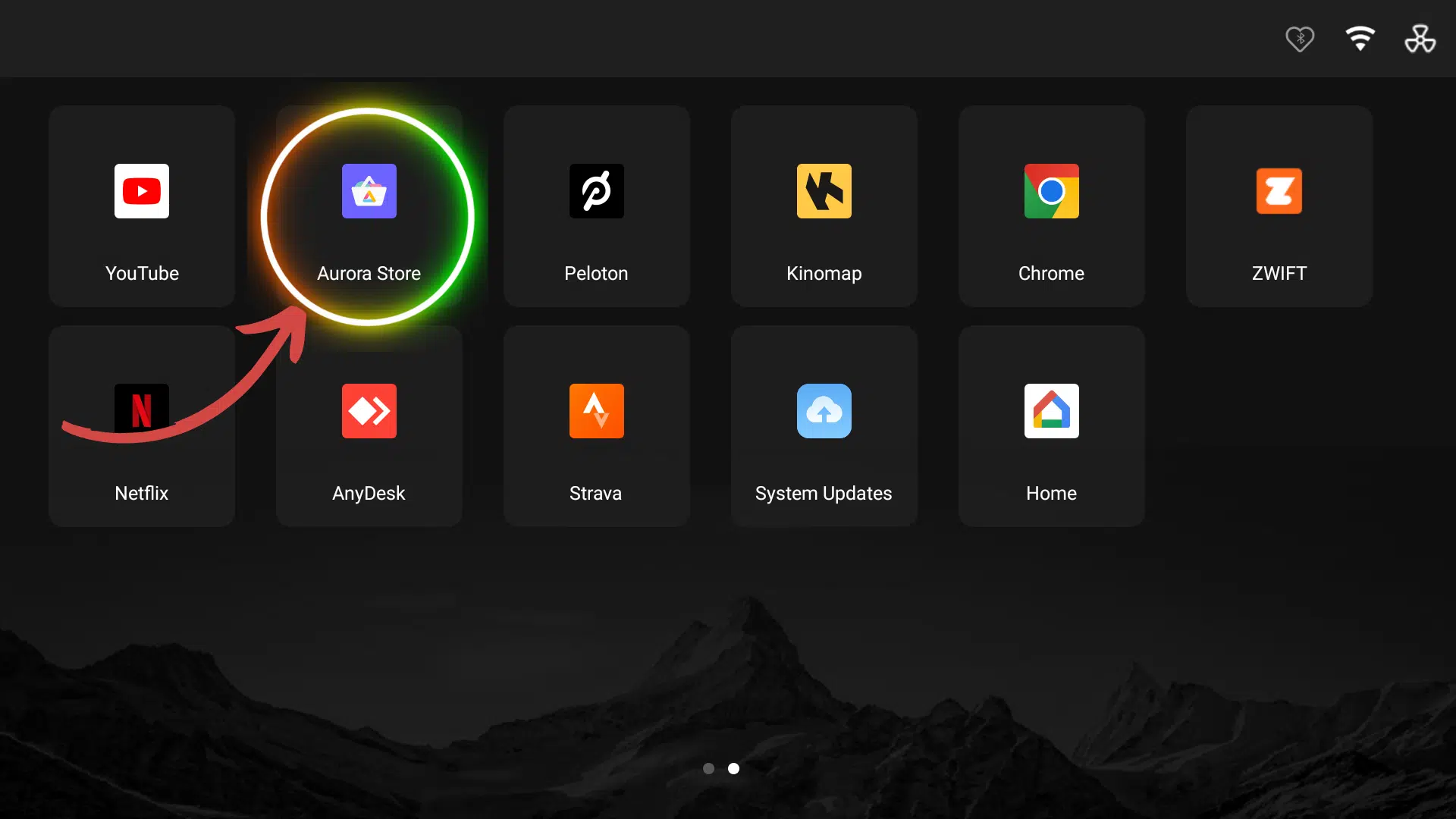
1. Go to the Aurora Store
2. Search for and Select your chosen App
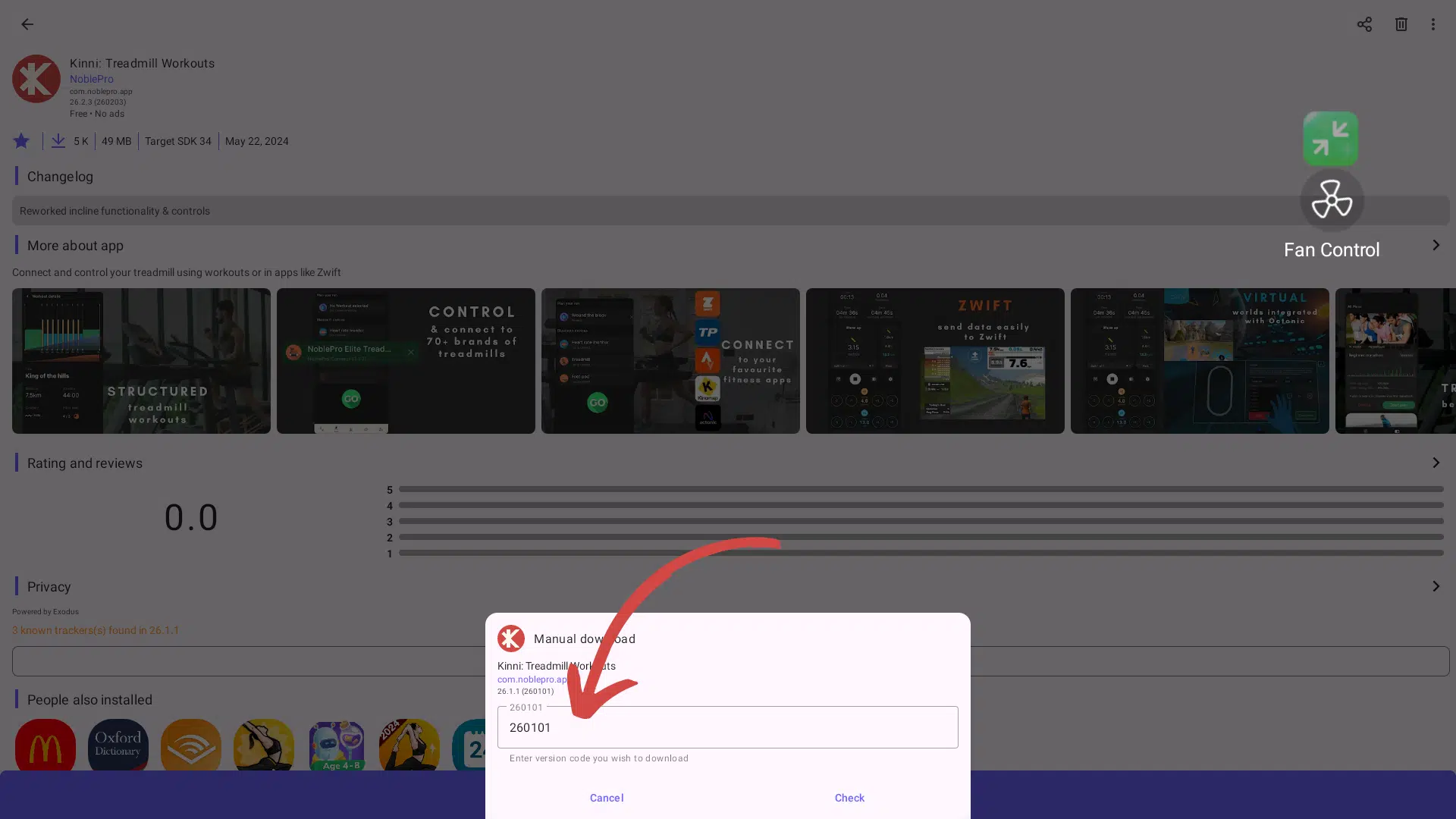
3. Open the Menu by clicking on the 3 dots at the top right hand corner of the screen
4. Select Manual download from the drop down options
5. Type in the App version number you wish to download. Please remove any gaps / punctuation in the version number you may have been provided.