



This article explains why Zwift may report low storage or fail to update on NoblePro treadmills, and how you can fix it.
On affected treadmills you may notice one or more of the following:
Zwift refuses to update and shows a storage or download error.
The console reports that internal storage is nearly full, even if you only have a few apps installed.
Zwift appears to be using far more space than expected. A normal Zwift install on our consoles is usually around 5 GB, but some users have seen the app using three times that.
A fresh Zwift install takes roughly 5 GB of space, which is in line with what Zwift uses on typical Android devices. Over Zwift’s related data built up over time and does not automatically get cleared.
Zwift is a large and graphics heavy training app. On Android it needs several gigabytes of space for the app itself and for its game worlds and data. Zwift’s own guidance for Android is that you should have at least 4 GB of free storage space available.
Your NoblePro console also has to store:
The Android operating system.
Default apps and services.
Updates and temporary files.
Any extra apps you install and their data.
Over time, and after a number of Zwift updates, some update files or old game data may not be removed properly. This can make it look as though Zwift is using much more space than it should. In reality, it is usually a mixture of the current Zwift app, old Zwift files and cached data that is no longer needed.
Zwift for Android uses large asset files and expansion data in addition to the main app package. The official Android requirements mention that devices should have at least 4 GB of free storage for Zwift to install and run reliably.
On NoblePro consoles we use Aurora Store to access apps from Google Play. Aurora Store is an open source client that lets you search for, download and update apps directly from the official Google Play Store without needing Google Play Services.
In rare cases a failed or partial update, or an unusual sequence of updates, can leave behind older Zwift data and download artefacts. Over time this can add up to several extra gigabytes. Removing Zwift completely clears all of this data in one go, including any orphaned files that are not visible inside the Aurora Store interface.
Step 1: Close Zwift
If Zwift is open, return to the main console home screen so that you are no longer inside the Zwift app.
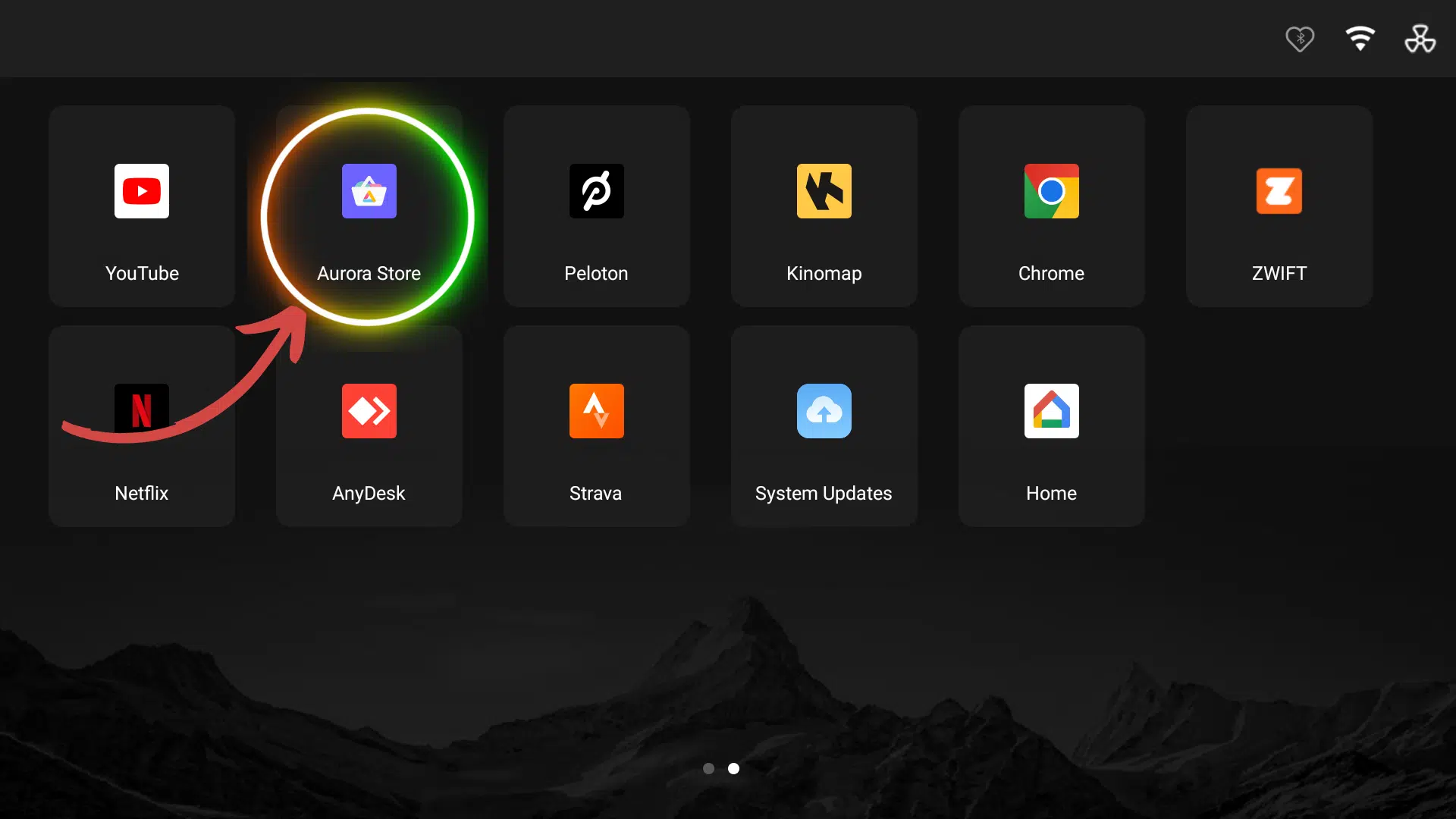
Step 2: Open Aurora Store
Find and open the Aurora Store app. This is the app that looks and behaves in a similar way to the Google Play Store and is used to install and update apps on the treadmill.
Step 3: Uninstall Zwift through Aurora Store
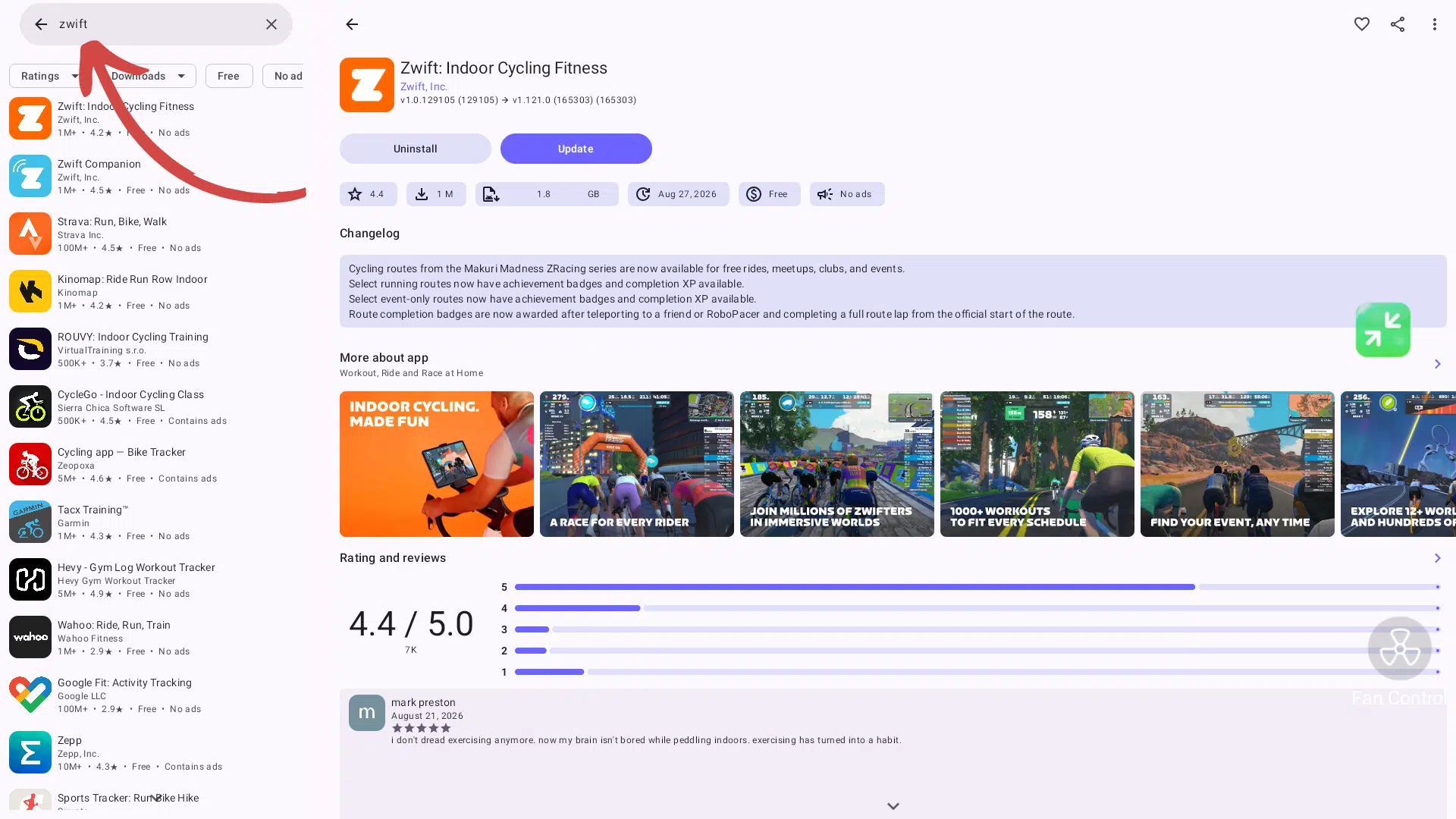
Use the search bar in Aurora Store to search for “Zwift”.
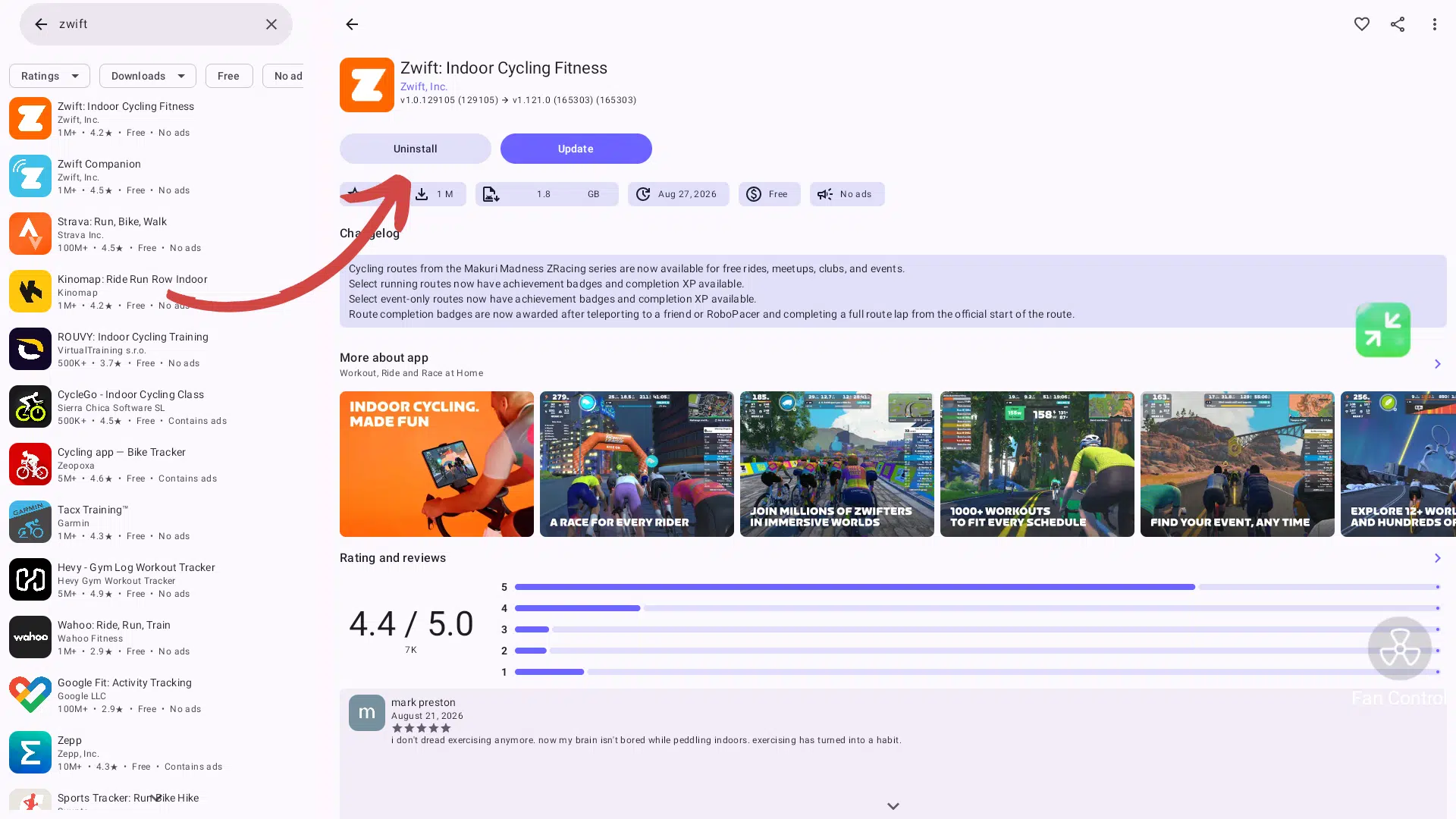
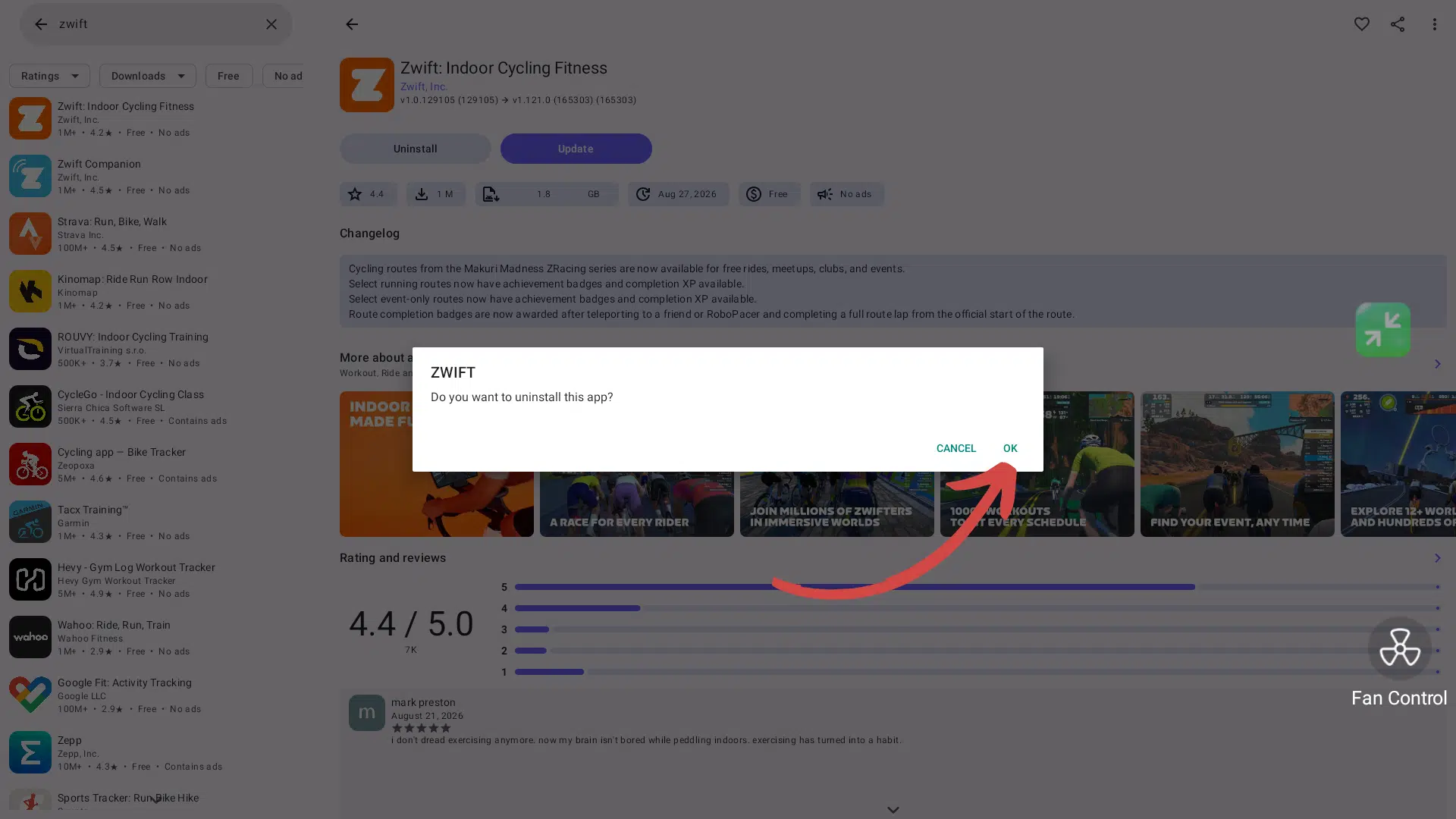
Open the Zwift app page. On that page there will be an option to remove or uninstall the app. Select this option and confirm that you want to uninstall Zwift.
Wait until Aurora Store shows that Zwift is no longer installed. This step removes Zwift and its stored data from the console, including the old and unused files that may be causing storage problems.
Step 4: Restart the treadmill console
After uninstalling Zwift, shutdown the treadmill console and switch the treadmill off at the mains in the usual safe way for your model. Wait a few seconds, then turn it back on.
This restart helps Android tidy up any remaining temporary files and ensures that the console correctly recognises the newly freed space.
Step 5: Reinstall Zwift through Aurora Store
Once the console has restarted, open Aurora Store again. Search for “Zwift” as before, open the Zwift app page and choose Install.
Allow the download and installation to complete. This may take some time, depending on the speed of your internet connection. When the install finishes, Zwift should be back on your console in its normal, compact form, ready to open.
Step 6: Open Zwift and sign in
Open Zwift from the console’s app list. You may be asked to sign in again with your Zwift account details, because the old data has been removed. Once you have signed in, you should be able to use Zwift as usual. Future updates should also have enough room to install correctly.
Step 1: Close Zwift
If Zwift is open, return to the main console home screen so that you are no longer inside the Zwift app.
Step 2: Open Aurora Store
Find and open the Aurora Store app. This is the app that looks and behaves in a similar way to the Google Play Store and is used to install and update apps on the treadmill.
Step 3: Open the App Info screen
Use the search bar in Aurora Store to search for “Zwift”.
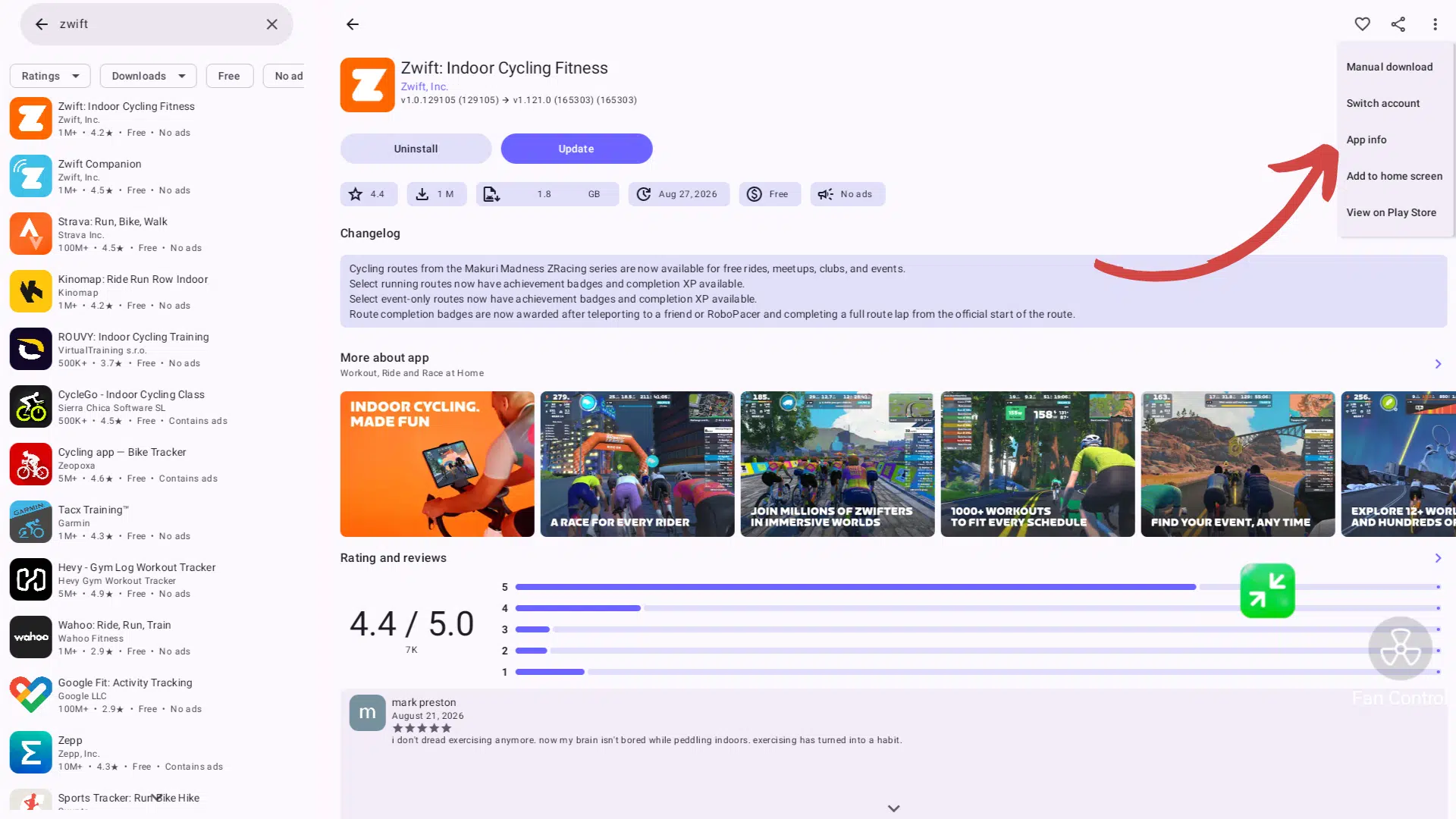
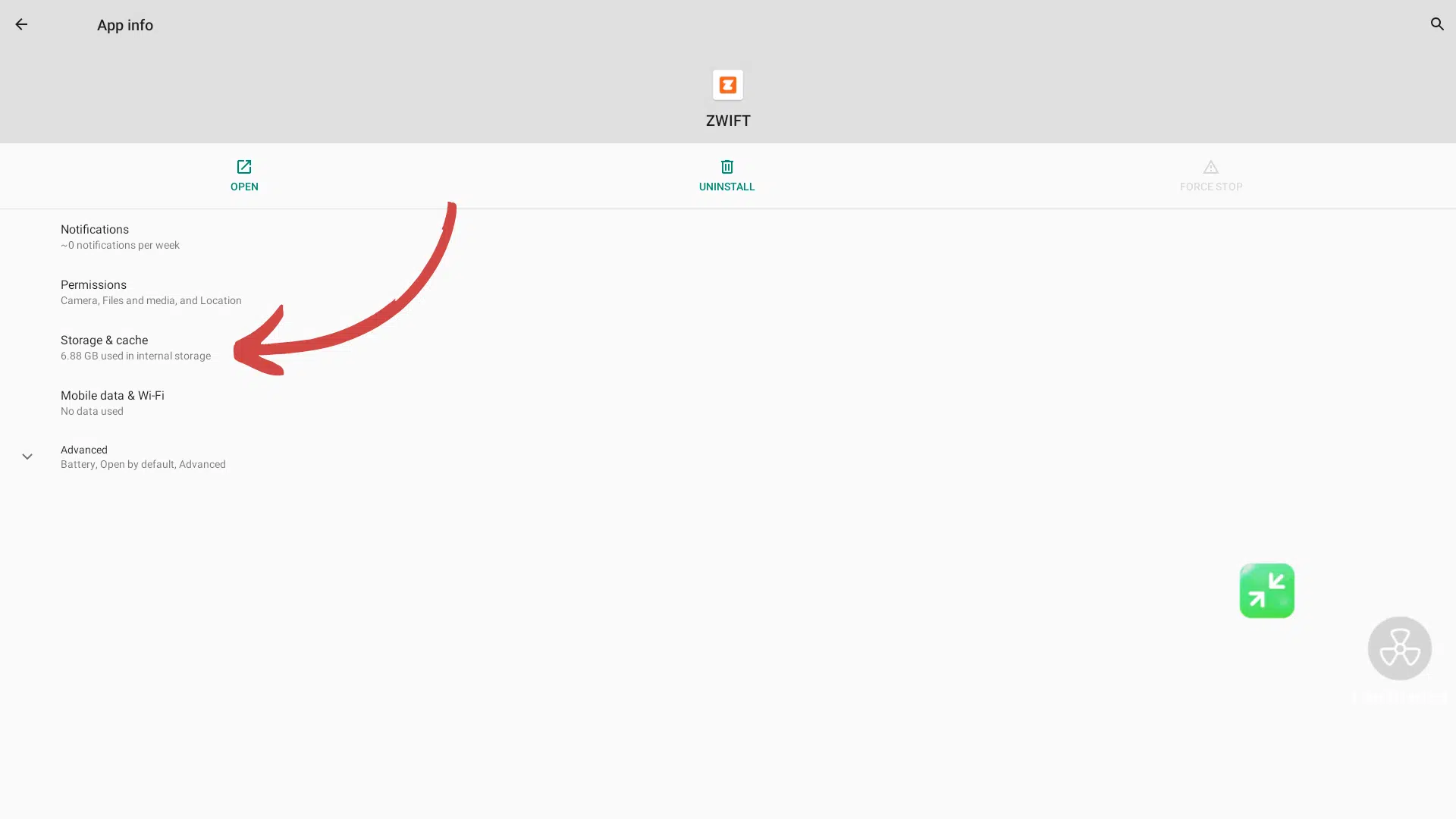
Open the Zwift app page. Click the three dots in the top right corner. Select App Settings / App Into option.
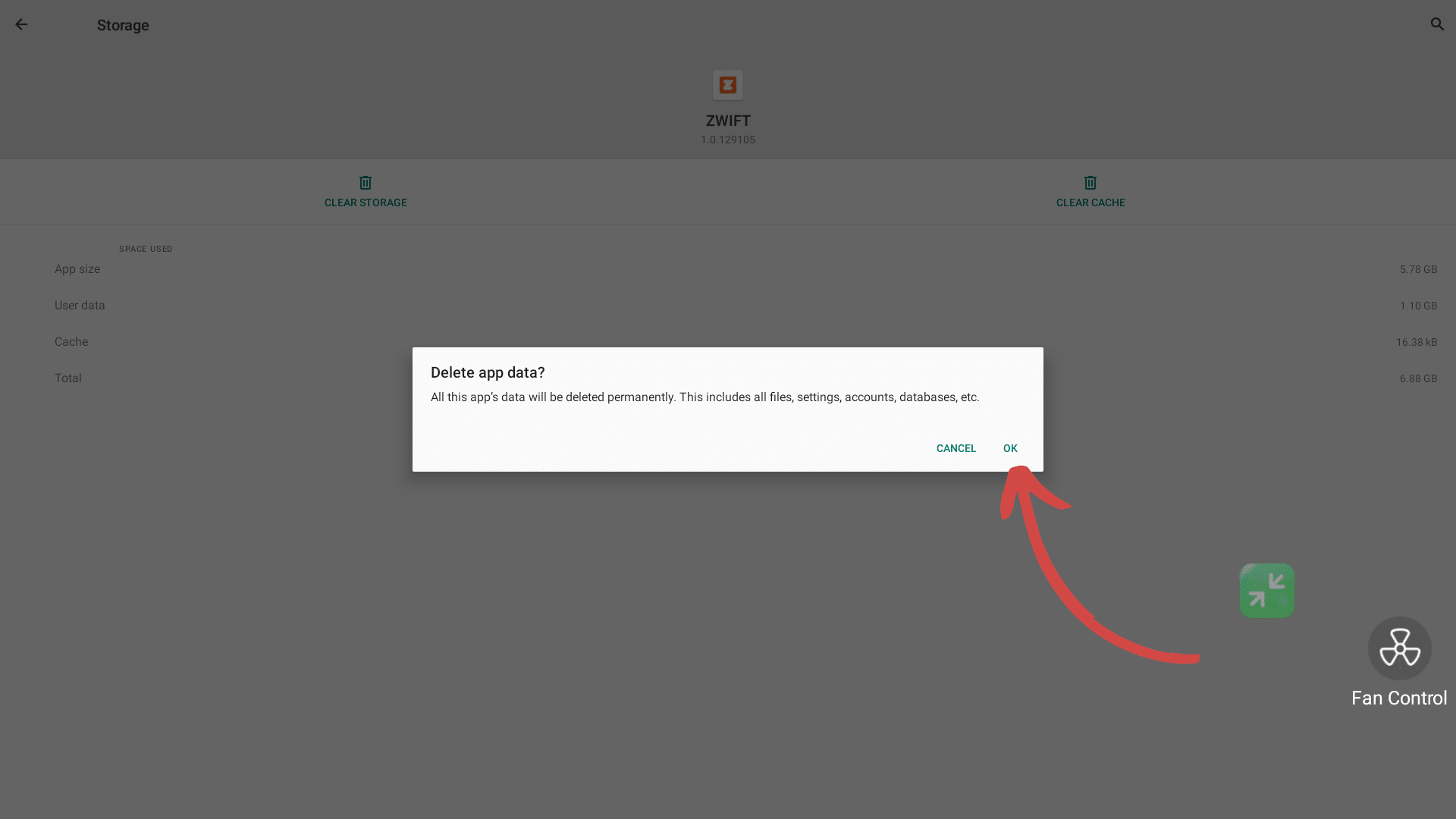
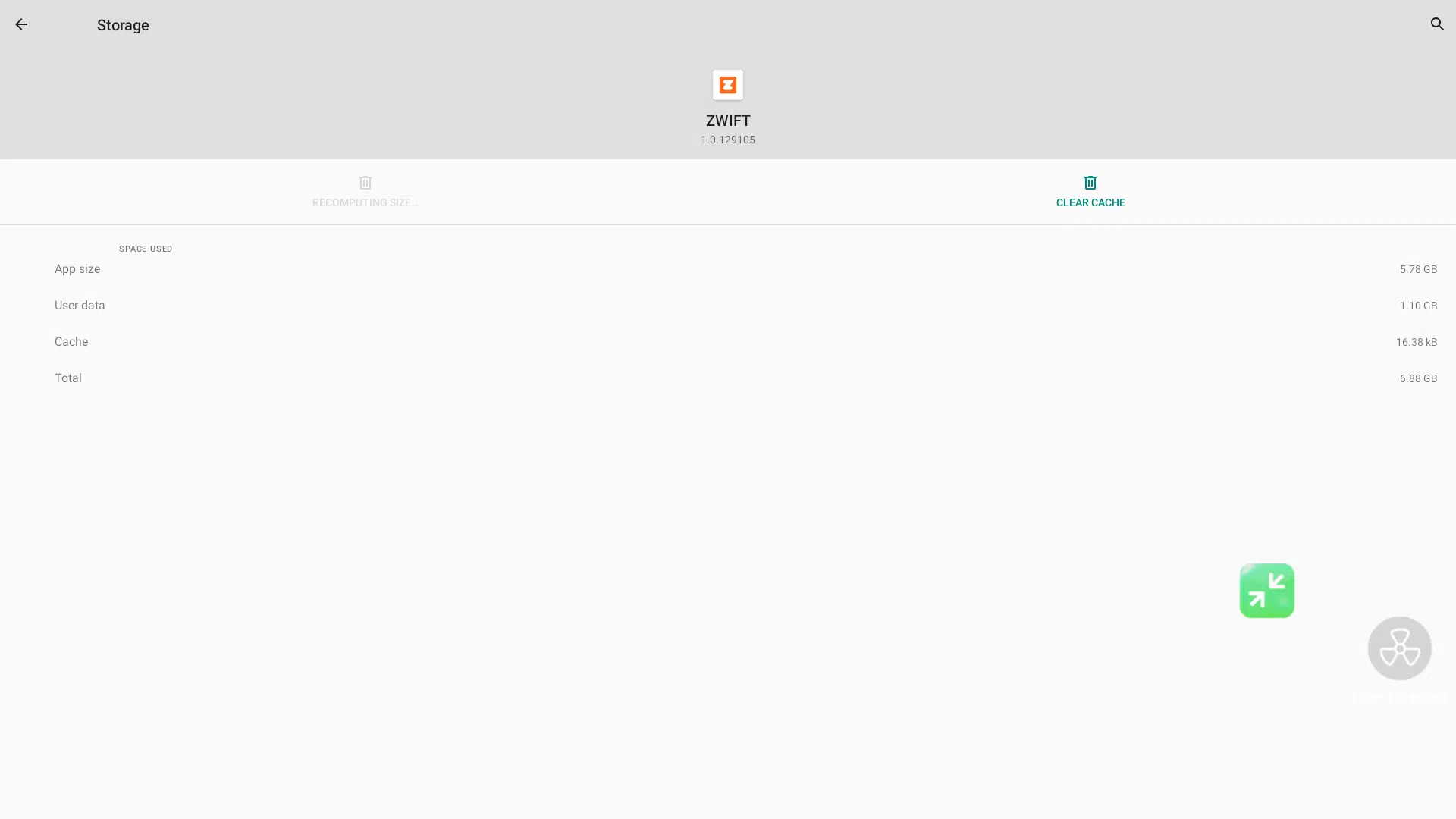
Step 4: Clear the Storage and Cache
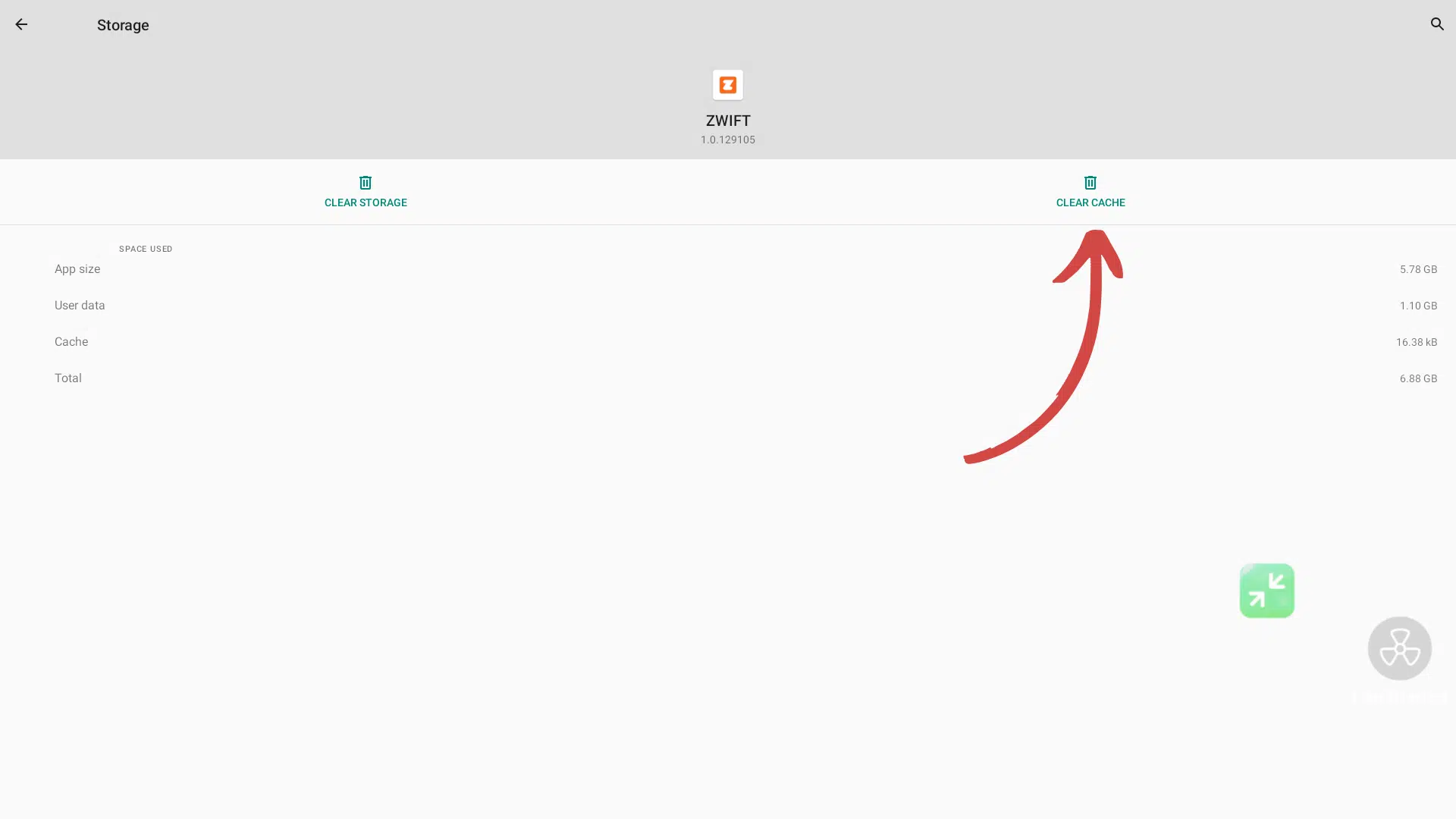
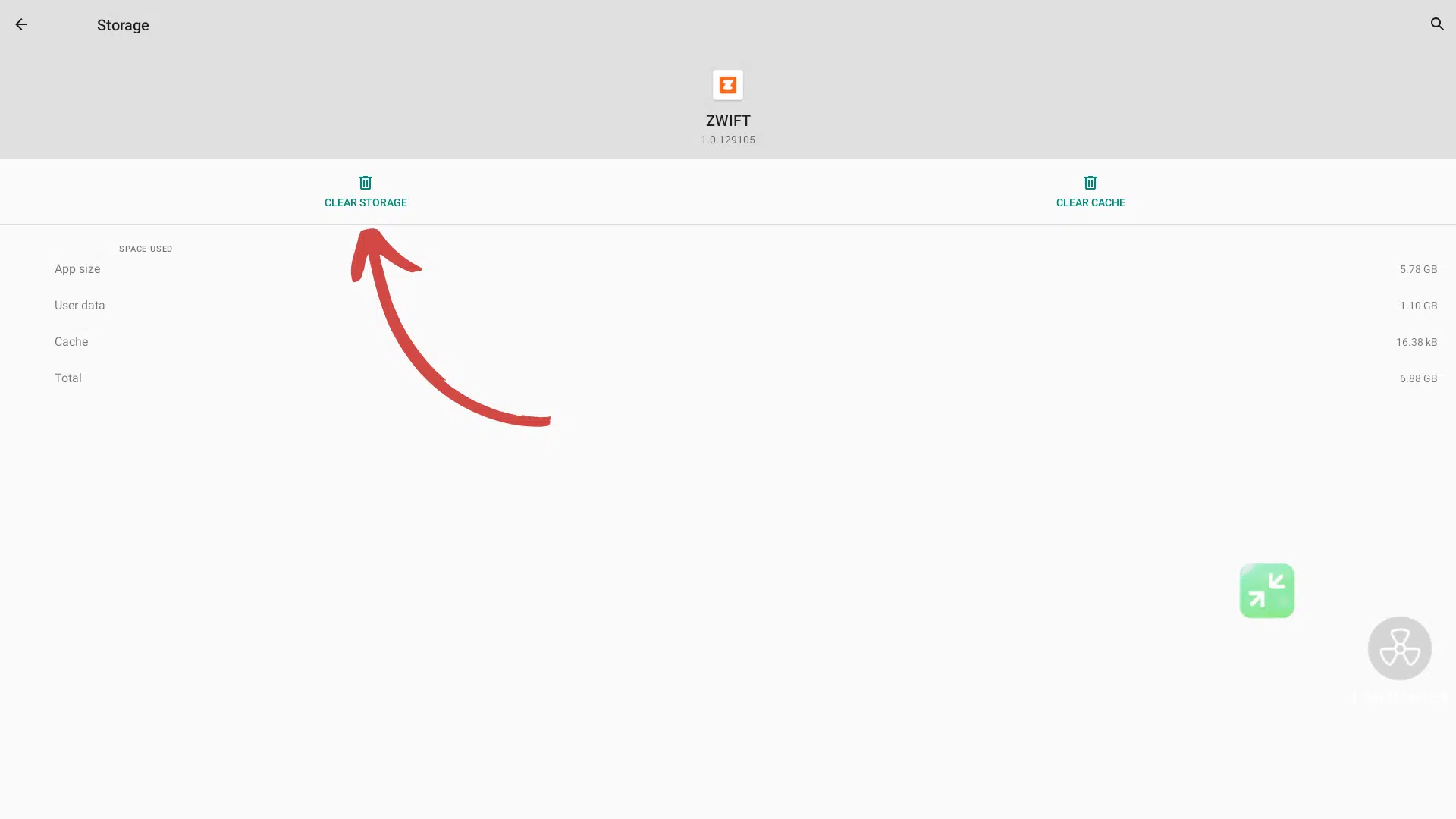
Click the Clear Storage and Clear Cache buttons. There will be a confirmation for the storage. After uninstalling Zwift, shutdown the treadmill console and switch the treadmill off at the mains in the usual safe way for your model. Wait a few seconds, then turn it back on.
This restart helps Android tidy up any remaining temporary files and ensures that the console correctly recognises the newly freed space.
Step 5: Reboot
After clearing Zwift’s storage space and cache, shutdown the treadmill console and switch the treadmill off at the mains in the usual safe way for your model. Wait a few seconds, then turn it back on.
This restart helps Android tidy up any remaining temporary files and ensures that the console correctly recognises the newly freed space.
Step 6: Open Zwift and sign in
Open Zwift from the console’s app list. You may be asked to sign in again with your Zwift account details, because the old data has been removed. Once you have signed in, you should be able to use Zwift as usual. Future updates should also have enough room to install correctly.
Need help? Start your support request online and we’ll connect you to the Support Team.
Nova is AI and can make mistakes.